What Does a Clicking Hard Drive Mean? How to Save Your Data
Picture this: you power on your computer—or plug in the external hard drive that holds every project you’ve ever worked on and every family photo you’ve ever taken—and instead of the familiar, quiet hum of spinning platters, you hear a sharp, rhythmic tapping: tick… tick… tick…
As data recovery specialists, we understand exactly how unsettling that sound is. Known in the industry as the “Click of Death,” it’s the hard drive’s final distress signal. But before panic sets in, let’s walk through what this sound actually means, what causes it, and—most importantly—the correct steps to rescue your data before it’s too late.
What’s Happening Inside Your Failing Hard Drive?
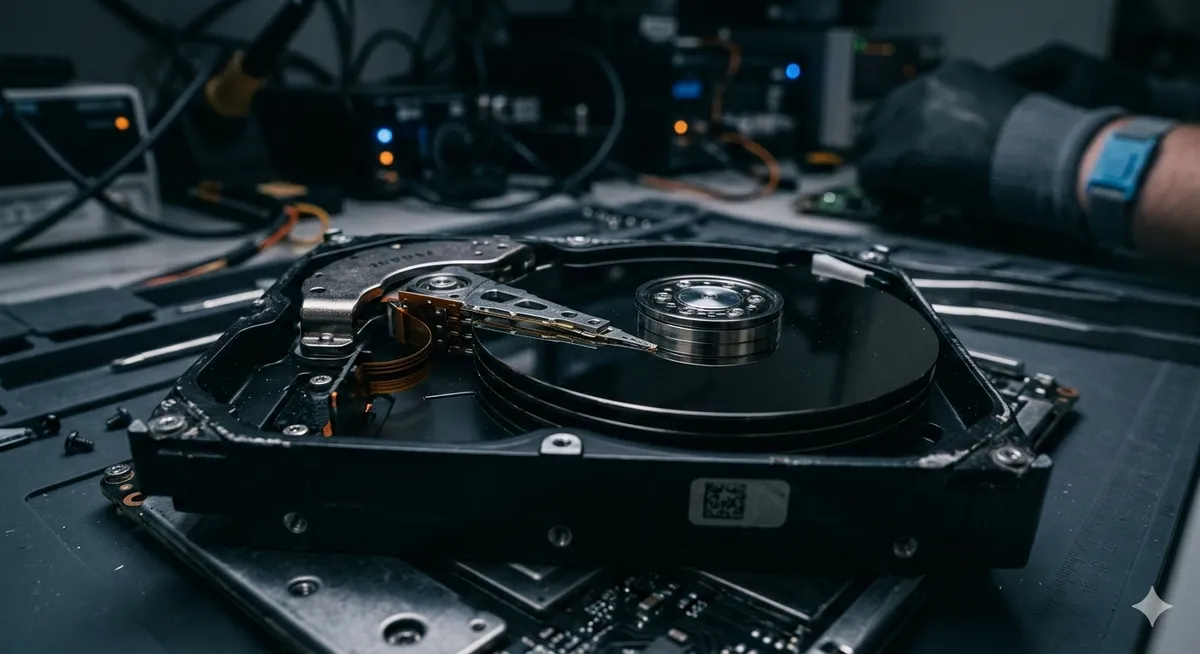
A traditional mechanical hard disk drive (HDD) is not a simple electronic chip—it’s a precision-engineered mechanical device. Inside, magnetic platters spin at thousands of RPM while a read/write head glides above them at a distance thinner than a human hair, reading and writing your data.
When you hear that clicking sound, it means the read/write head is failing to locate the servo marks—microscopic alignment guides etched onto the platters that define each data track. Because the head can’t find its position, the drive’s control system repeatedly retries, slamming the head arm into the motion limiter with each failed attempt. That impact is the “click” you hear. In short: this is a physical, mechanical failure—not a software glitch that can be fixed with a download.
Common Causes of Hard Drive Clicking
Understanding how the damage occurred helps determine the best recovery approach. Here are the most frequent causes of mechanical failure:
- Drops and physical impact: The number one cause. Dropping a laptop or external drive—even from a short height—while it’s running can bend the head arm or crash the head directly into the platter surface.
- Sudden power loss: Voltage fluctuations or unsafe disconnection can prevent the head from safely returning to its parking position.
- PCB failure: Sometimes the green circuit board on the back of the drive malfunctions, sending erratic signals that cause the head to move erratically.
- Age and wear: Every hard drive has a finite lifespan. After years of continuous operation, mechanical components lose their precision.
Immediate Action: The Golden Rule 🛑
If you’re hearing that clicking sound right now, there is one critical rule you must follow immediately to prevent permanent data loss:
Disconnect the power or USB cable from the hard drive immediately.
Do not try to power it on again. Do not leave it running for hours hoping it will “fix itself.” Why? Because every second the drive keeps spinning with a damaged head increases the risk of a platter scratch. If the magnetic surface—the physical layer that holds your data—gets scratched, recovery becomes impossible even for the most advanced labs in the world.
Common Myths That Destroy Your Data Permanently
In moments of panic, you might turn to the internet for quick fixes. This is where the real danger lies:
- “Put it in the freezer”: An outdated myth from the 1990s. Today, sudden temperature changes and condensation will destroy modern platters and the ultra-sensitive head assembly.
- “Try software like Recuva or EaseUS”: These tools are designed for logical failures (deleted files, accidental formatting). Running a scan for hours on a clicking drive forces a broken head to sweep across a damaged platter millions of times—the fastest way to destroy your data permanently.
- “Open the cover and clean it”: Hard drives are assembled in factory-grade cleanrooms with zero dust contamination. Opening a drive in your living room exposes the platters to microscopic dust particles that act like sandpaper against the head and platter surface.
The Professional Solution: How Datacodex Recovers Your Data
As a specialized data recovery lab in Saudi Arabia, dealing with mechanically failing hard drives requires surgical precision. At Datacodex, we follow a strict protocol to maximize success rates:
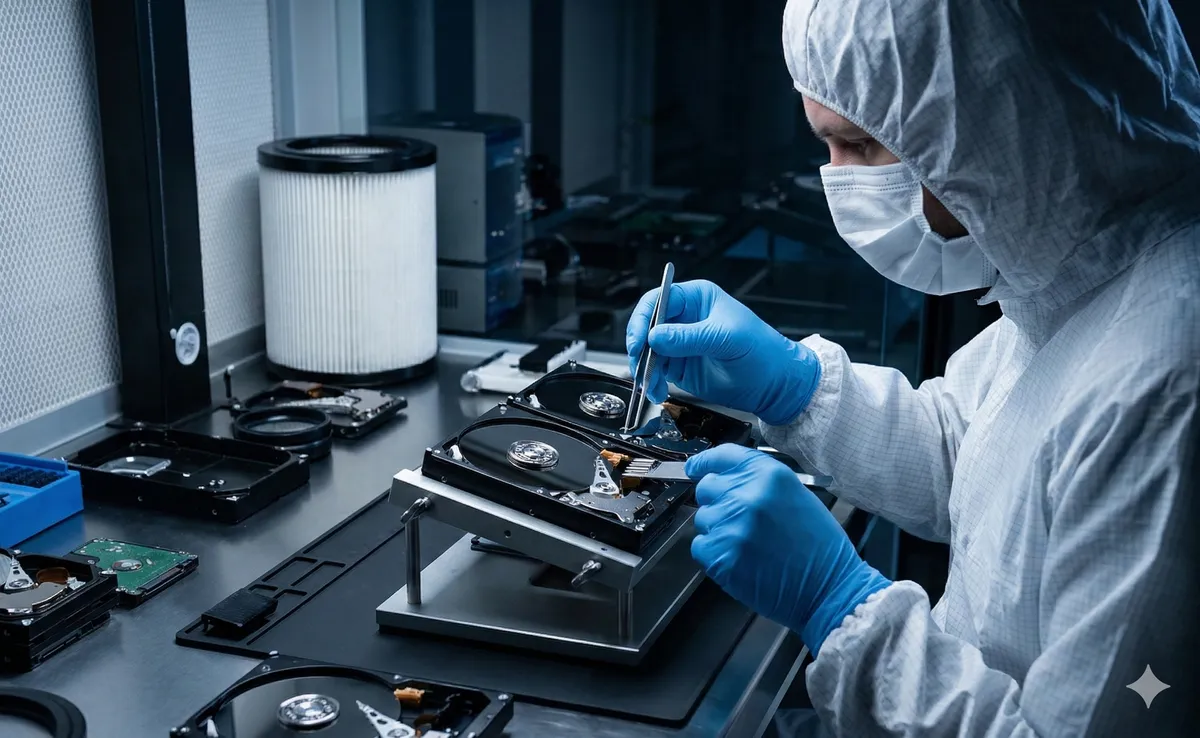
- Cleanroom environment: The drive is opened exclusively inside a certified Class 100 cleanroom—a dust-free, controlled environment that prevents any contamination of the platters.
- Head swap procedure: We source a matching donor drive from our extensive parts library and transplant the healthy read/write heads into your damaged drive using specialized micro-extraction tools to ensure zero platter contact.
- Bypassing Windows with PC-3000: We never connect a failing drive to a standard Windows system. Instead, we use advanced hardware (PC-3000) to communicate directly with the drive’s internal processor in Techno Mode, allowing us to read data at controlled speeds, skip damaged sectors safely, and extract your files onto a new, healthy drive.
Key Takeaway
A clicking sound doesn’t necessarily mean the end for your data—but it is a final warning from a drive that needs professional help. Acting quickly by disconnecting the power gives you a recovery success rate exceeding 90%. Continuing with random software attempts or DIY repairs is the shortest path to permanent loss.